Replies, and the text you have written, at a size that is comfortable here.
Connected endpoints
0
Add a connection
Emmett registers the endpoint for you. The key is entered on a secure page, never here or in chat.
Connections added by Emmett show up here, and you can remove them at any time.
How to connect a custom API
Start a chat. Say which tool you publish to. Emmett asks for the endpoint, the docs and the auth style — nothing to fill in here.
Emmett registers the connection. It creates it for this project as pending and confirms the field mapping.
Paste the key on the secure page. Emmett sends a one-time link; the value goes straight to the server and never into the chat.
Prefer to write it yourself? Copy the template
Prompt to send
I want to connect a publishing API for this project.

Endpoint: <base URL + publish path, e.g. https://api.example.com/v1/articles>
Docs: <documentation URL, or "none">
Auth: <header name + scheme, e.g. X-API-Key; or bearer; or basic with username; or none>
Article fields: <the JSON keys it accepts, and anything required we don't produce>
Published URL: <the response field that holds the public article URL>
Extra: <fixed headers or ids, rate limits, IP allowlist, staging host>

If any line is still a placeholder, ask me for it before registering. Otherwise register the connection for this project and send me the one-time link to enter the key.
Revenue from search is measured from captured live payments that can be matched to the page that earned them. Emmett needs read access to charges only; the key is encrypted on the server and never shown again.
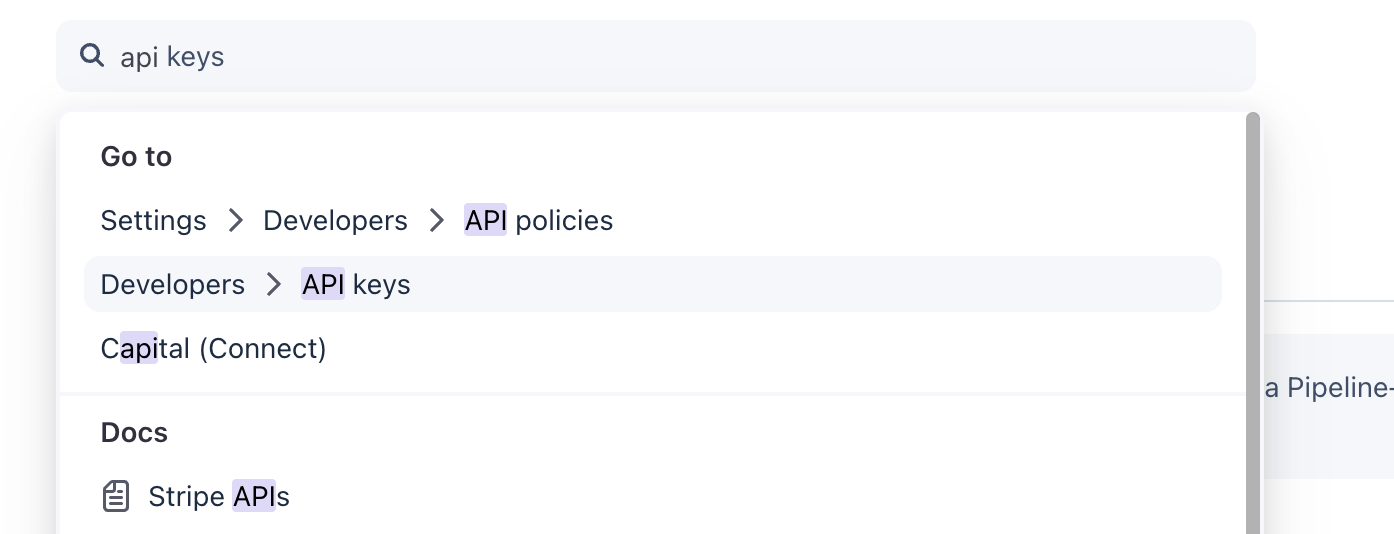
Open the API keys page. In Stripe, search for API keys, or open Developers → API keys.
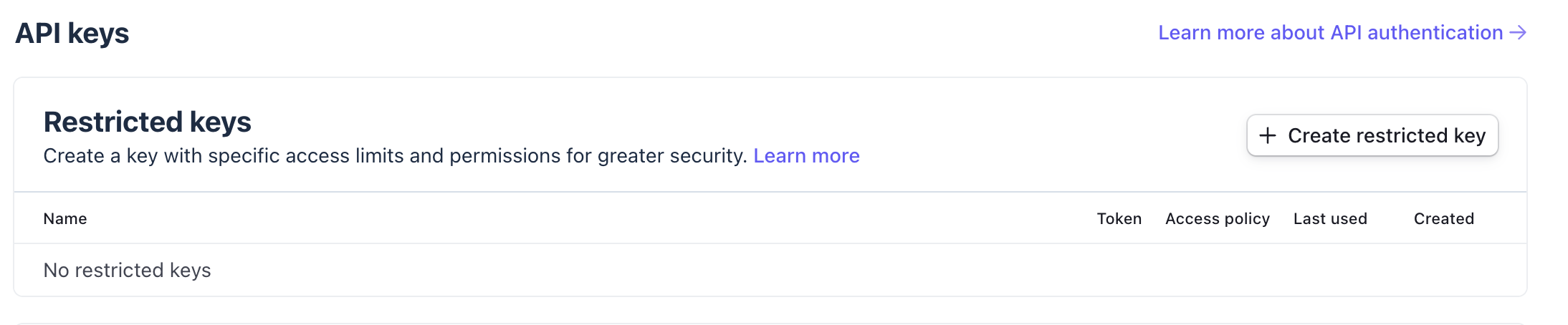
Create a restricted key. Name it “HeyEmmett reporting”, keep it in live mode, grant Charges: Read and leave every other resource at None.
Copy the key. It starts with rk_live_. Do not paste it into a chat.
Paste it here. The server validates it against Stripe before saving; nothing is charged.
Where to click (2 screenshots)1 · Developers → API keys2 · Create restricted key
Guide
How HeyEmmett works
A short tour of every part of the workspace.
Overview
HeyEmmett runs one website at a time: a 7-day plan, the work that executes it, and the numbers that show whether it worked. This is the whole loop, from an empty account to a report you can act on.
1
Add your websitePick the domain in the top bar, or add a new one. Everything after this lives inside that project.Top bar
2
Connect the accountsSearch Console and Analytics for the numbers, Stripe for revenue, GitHub or a CMS for publishing.Settings
3
Get the 7-day planEmmett researches the site and writes tasks onto the board, each with the action it needs.Tasks
4
Work a taskSTART runs it with the project's context; ⋯ → Send to chat moves it into a conversation.Tasks · Chat
5
Read and keep the outputArticles, keyword sheets and CSVs land in the project folder. Previews open above the chat.Files
6
Publish itShopify, WordPress, GitHub, Webflow or a custom API. A GitHub merge is confirmed before the task closes.Publishing
7
Measure, then repeatRevenue, traffic, impressions and AI visits with the pages that earned them. Next week starts from what the numbers show.Dashboard
The loop every project follows, and where each step lives.
One website, one workspace — plan, board, chat sessions, files and connections never mix between domains.
The plan is the spine — tasks carry the keyword and page they came from, so any step can be traced back to a number.
Everything is reversible — archiving a domain keeps its tasks and files; revoking a grant never deletes published work.
Every panel has an i of its own — sessions, files, preview, the search dashboard, tasks and settings — so the detail is readable where you are, without leaving the work.
Sessions
A session is one conversation with Emmett inside a project. Each one keeps its own messages, its own file preview and its own queue — switching never mixes them.
Which pages lost clicks last month?
Emmett 12:04
Three pages dropped. The pricing page lost 41% — its title changed on the 6th. Want me to draft the old title back?
Yes, and list the other two.
Hover a row to reveal Reference, Fork, Rename and Delete.
+ New chat — start a fresh session in the same project.
Reference — attach this chat to your next message so Emmett can read its earlier context.
Fork — copy the chat into a new session that continues from the same point.
Rename — rename the session. Enter saves, Esc cancels.
Delete — delete the session and its transcript, after a confirmation.
i — this guide.
A running reply keeps going on the server even if you switch to another session: the row shows a spinner and a dot marks unread answers.
Files and tabs
The right column is the project folder Emmett reads and writes. Folders expand in place; clicking a file opens it above the conversation.
Emmett
The keyword sheet is in data/keywords.csv. Opening it now.
Add the three tools that lost traffic.
The same project seen through four tabs.
Files — the folder tree. Drag a file onto the chat to reference it.
Recent — the files you opened, most recent first, as a snapshot of the view.
Google Docs — Docs, Sheets and Slides this project imported, created or linked, with Reference and Open ↗.
Session — only what this conversation touched: files and links, newest first.
The folder icon in the top bar toggles the column; an open folder means it is showing.
File preview
Opening a file shows it above the chat rather than in a separate window. Markdown, JSON, CSV, HTML dashboards, images, audio and video all render; Word documents are read as text.
Most “AI SEO” suites are a keyword table with a chat box bolted on. These are the ones that changed a number we track.
1. Search Console, read properly
Position is a distribution, not an average. The pages that matter are the ones sitting at 11–15, close enough to page one that a title rewrite moves them.
The toolbar on an open Markdown file.
Source — switch between the rendered view and raw text.
Open ↗ — open the file in a new tab.
Download — save a copy.
Reference — put the file into your next message.
Full screen — cover the window for long documents. Esc leaves full screen first, then closes.
The preview belongs to the session: switching chats shows that chat's file, and returning restores it.
Composer and uploads
Enter sends, Shift+Enter adds a line. Drag files or paste a screenshot to upload them into the project; the message carries them as attachments.
Rewrite the intro so it leads with the drop in clicks.
screenshot.png×
Rewrite the opening paragraph so the drop in clicks comes first, then keep the rest as is.
Enter to send · Shift+Enter for a new line
A message with an upload attached.
Send / Stop — while Emmett works, the same round button stops the run.
Queue — press Enter during a reply to queue your next message; it sends as soon as the turn ends.
Status strip — under the sessions, shows upload progress and the result of a run.
Projects
Every website is a project: its own sessions, files, keyword tracker, tasks and connections. The project switcher sits at the top of the chat and in the header of the app; with more than a handful it gets a search field.
example.com
exa
example.com6 sessions✓
+ Add a domain
Searching the switcher, then adding a website as a new project.
Add domain — creates a project and starts planning for that site.
Sessions and files stay per project — nothing leaks between websites.
Plan — a new project gets a 7-day plan of tasks; later visits add the next week.
Search dashboard
The app's left panel turns the project's Search Console and analytics into three numbers, a trend chart and a page table. A ‹› handle between the panels resizes it; the gear opens Settings.
Search performance
Top-ranking pages from Google Search and AI traffic
example.comDayWeekMonth
Search Console and Analytics connected · last 28 days
Revenue from search$12,418Stripe · attributed to search
Traffic from search8,932Google clicks + AI visits
Impressions from search214kGoogle Search Console
Google SearchAI traffic
Top-ranking pages
Clicks
PageClicksAI visitsPosition
/blog/best-ai-seo-tools1,204624.2
/pricing886316.8
/compare/teamorouter5121811.4
Revenue, traffic and impressions for Month.
Day / Week / Month — the period; Month is the default.
Hover the chart — exact clicks and impressions for each day.
Top-ranking pages — sort by clicks, impressions or position; drag the split to see more rows.
The right column is the board. Tasks are grouped by challenge day, each card carrying one action so a day can be worked top to bottom.
Day 12 · TuesdayToday2 of 3 done
Publish “best AI SEO tools” and link it from the pricing page
best ai seo toolsSTART⋯
Fix the three redirect chains blocking /blog
technicalSTART⋯
Send to chatDelete
Day 11 · MondayDone
✓
Draft the comparison table for the three tools
drafting
Day groups, cards and the ⋯ menu.
START — run that task with the project's context; DONE acknowledges finished work.
⋯ → Send to chat — opens a new chat scoped to that task, with its keyword and id.
⋯ → Delete — removes the task, after a confirmation.
Drag a card between days — re-home it on another challenge day.
A green check on a merge card means Emmett waits for GitHub to confirm the merge before it completes itself.
Settings
Settings is the one place that lists every account Emmett can act through: Google, reporting and publishing. Each row shows its state and the single action that changes it.
Google
Search Console and Analytics read your own data; Docs read and write are separate grants.
Search Console
Queries, pages and impressions for this website.
ConnectedRevoke
Analytics
Sessions, AI referrals and purchase revenue.
ConnectedRevoke
Google Docs
Read Docs, Sheets and Slides this project uses.
ConnectedRevoke
Google Docs (write)
Create and update documents and sheets for you.
Connect
Reporting
Stripe revenue is matched to the page and search source that earned it.
Stripe
Payments and refunds for this website.
Required for revenueConnect
Publishing
Where finished work can be pushed.
GitHub
Commits and pull requests in the project repository.
ConnectedRevoke
Google, reporting and publishing in one list.
Google — Search Console, Analytics, Docs (read) and Docs (write) are separate grants.
Reporting — Stripe is connected per website; its guide and key form live in the same panel.
Publishing — Shopify, WordPress, GitHub, Webflow and custom APIs.
Custom APIs — register any endpoint; the key is entered on a secure page, never in chat.
Access is per account and scoped to the current project; revoking a grant here does not delete any published work.
Connect to GSC and Your Website
Google Search Console
Track search traffic.
Checking…
Your website
Choose one
Checking your publishers…
Choose a daily publishing time for your 7-day plan.
Your articlesCHECKING
Checking the existing schedule…
First article in ~2 minutes. The rest follow your 7-day schedule.
Follow progress in Articles. You can adjust the schedule anytime.
×
Dismiss setup banner?
You can still reopen the guided setup from the Setup button in the Tasks header.
Analyzing your domain…0%
Domain
Research
Tasks
Board
Now
!Generation failed
Plan ready — tasks added to the board below.
Tasks
Task Type
Task Status
new tasks added automatically each week when you log in
Blog0
Loading blog…
Loading keywords…
Blogs0 files
Keyword Research0 files
Competitor Analysis0 files
Technical SEO0 files
Backlink Analysis0 files
General0 files
Files
No files in this category
New task
Task
File
Knowledge Base
Loading competitor analysis...
Loading 7-day plan...
🎉
Setup complete!
Schedule this task
Emmett runs it at this time on its own, even when the app is closed.
🌐
Add a Domain
Enter your website domain to get started with AI-powered SEO tools.
https://
Please enter a valid domain (e.g., assembo.ai)
From Search Console
7-day challenge
7 days of posting to rank in ChatGPT
Before you start: AI-search ranking depends on your current traffic and niche competition. Completing every task—including optional work—improves your odds but cannot guarantee visibility within seven days. If it takes longer, keep improving your SEO/AEO; visibility may come later.
AI can do the work for you. Let Emmett research, write, and prepare your daily posts. Review and publish when ready.
🛠️ Technical: Setup & Fast Indexing
Human: Connect your site through GitHub, WordPress, or Shopify.
AI: Check the live sitemap; if missing, generate sitemap.xml in a GitHub PR; deploy Organization and FAQ JSON-LD schema.
Human: Merge the requested sitemap PR, then submit the live /sitemap.xml URL in Google Search Console.
✍️ On-page: Seven Answer-First Blogs
AI: Choose seven relevant, high-volume, low-competition Keyword Tracker terms and create one blog task per term.
AI: Target long-tail customer questions; add a 40–60 word direct answer below each main H2, plus useful data, comparison tables, and unique brand statistics.
Human: Publish each completed blog through GitHub, WordPress, or Shopify.
Human: Improve blogs with brand information, original insights, and reference links.
📣 Off-page: Trust Signals
AI drafts; human posts (optional): Find and verify Reddit, Quora, and X threads for the priority keywords; draft one tailored expert reply per thread.
AI drafts; human posts (optional): Write professional LinkedIn and Medium posts with those keywords and the blog generator’s people-first standards.
AI drafts; human posts (optional): Turn the first generated blog into a YouTube title and complete video script.
🔍 Verification & Reward
Human: Test the first five priority keywords from the external-post cards in Perplexity, ChatGPT Search, or web-enabled Gemini.
Human: Screenshot a brand citation and email contact@heyemmett.com to claim the 50% discount. The 50% refund is issued after payment is received.
import requests
KEY  = "YOUR_KEY"
BASE = "https://server.heyemmett.com/auto_article"
arts = requests.get(f"{BASE}/api/articles",
    params={"limit":50},
    headers={"X-API-Key":KEY}).json()["articles"]
for a in [x for x in arts if not x.get("published")]:
    post_to_cms(a["title"], a["content"])
    requests.post(f"{BASE}/api/articles/{a['id']}/mark-published",
        headers={"X-API-Key":KEY})
const BASE = "https://server.heyemmett.com/auto_article";
const H    = { "X-API-Key": "YOUR_KEY" };
const { articles } = await fetch(`${BASE}/api/articles?limit=50`,{headers:H}).then(r=>r.json());
for (const a of articles.filter(x=>!x.published)) {
  await postToCMS(a.title, a.content);
  await fetch(`${BASE}/api/articles/${a.id}/mark-published`,{method:"POST",headers:H});
}
🔗
Backlinks
High-quality backlinks are key to ranking — but building them takes time. We've partnered with SEO Mode to give you a fast, proven solution.